

Cinder: open-source project website template
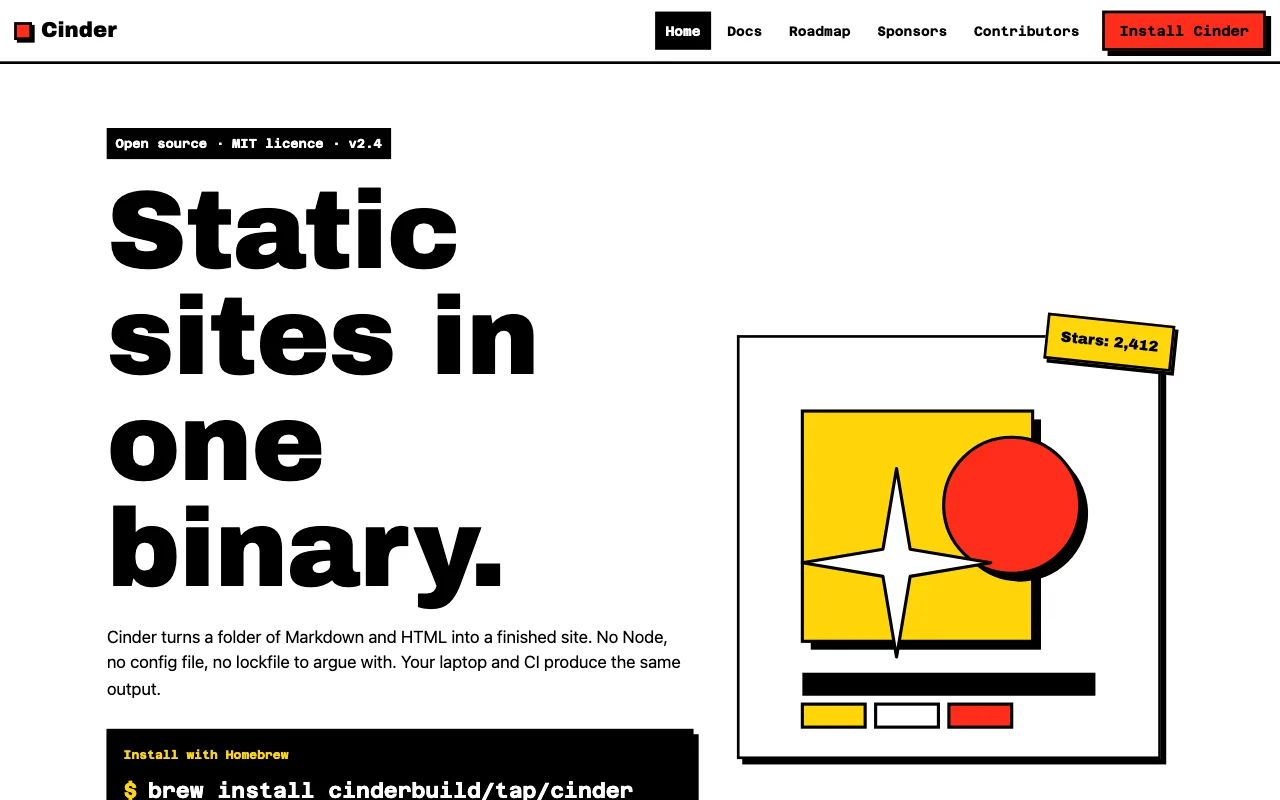
A neo-brutalist open-source project site: pure white, 3px black borders, hard offset shadows, hot-red and yellow stickers and a big install command with a copy button.
Built from: Pages · Lists: forms
To use it, paste this into your AI chat:
Use template pagelemon.com/tp/CinderWho it suits
Made for: open-source project, indie developer tool, command-line tool, developer tool, indie tool. In the gallery under SaaS & app.
Its 6 pages
- Home: One-line promise, big install command with copy button, feature bento, terminal demo, review, roadmap teaser and sponsor band
- Install: Four install routes with copy buttons, a version check, a platform table and a first-build walkthrough
- Docs: Docs index with a sticky section list: quick start, config keys, layouts, front matter, plugins, CLI reference and deploying
- Roadmap: Now, Next and Later columns linked to issues, plus a not-planned list
- Sponsors: Three sponsor tiers with a highlighted middle tier, a logo wall and an inert sponsor enquiry form with a mailto fallback
- Contributors: Maintainer cards, recent contributor chips and a three-step guide to joining
Look: Neo-brutalist open source: hard shadows and stickers; light, bold, modern; fonts Archivo Black and Azeret Mono.
Ready for: a form that sends to your inbox, once you ask your AI to turn it on.
What you can change
Everything, by asking your AI: the name, words, photos, colours, fonts and pages. Your AI first asks you a few questions (such as your name, email, install command, version number, star count and sponsor tiers and prices), then replaces every piece of sample text with your own details. Later you can add a contact form, bookings or a password by asking again.
The rest of this page is for your AI: it says what the template is, where its files are, and how to build your site from it and publish it.
You are reading this because the user wants their own website made from the Cinder template and published with Page Lemon (PageLemon.com). They may have pasted only "Use template pagelemon.com/tp/Cinder": that is the whole request, so start now. In short: ask them a few questions about their business, get the template's files (with the Page Lemon connector, deploy with template: "cinder" copies them for you), make the site theirs (their name, words, details and pictures; no sample content left), then publish it with Page Lemon and give them the link. The steps below say exactly how. The full publishing guide is at https://pagelemon.com/agents.
About this template
- Look: Neo-brutalist open source: hard shadows and stickers (light, bold, modern)
-
Pages: Home (
index.html): One-line promise, big install command with copy button, feature bento, terminal demo, review, roadmap teaser and sponsor band; Install (install.html): Four install routes with copy buttons, a version check, a platform table and a first-build walkthrough; Docs (docs.html): Docs index with a sticky section list: quick start, config keys, layouts, front matter, plugins, CLI reference and deploying; Roadmap (roadmap.html): Now, Next and Later columns linked to issues, plus a not-planned list; Sponsors (sponsors.html): Three sponsor tiers with a highlighted middle tier, a logo wall and an inert sponsor enquiry form with a mailto fallback; Contributors (contributors.html): Maintainer cards, recent contributor chips and a three-step guide to joining - Fonts: Archivo Black, Azeret Mono (Google Fonts)
-
Colours:
--paper#FFFFFF,--ink#000000,--red#FF2D1A,--yellow#FFD60A - Live demo: https://pagelemon.com/templates/cinder/ (people see it with the Page Lemon bar at https://pagelemon.com/tp/Cinder; the page about it is https://pagelemon.com/tp/Cinder/use)
- Manifest: https://pagelemon.com/templates/cinder/template.json (machine-readable: files, customise, slots, facts, interview)
How the visuals were made
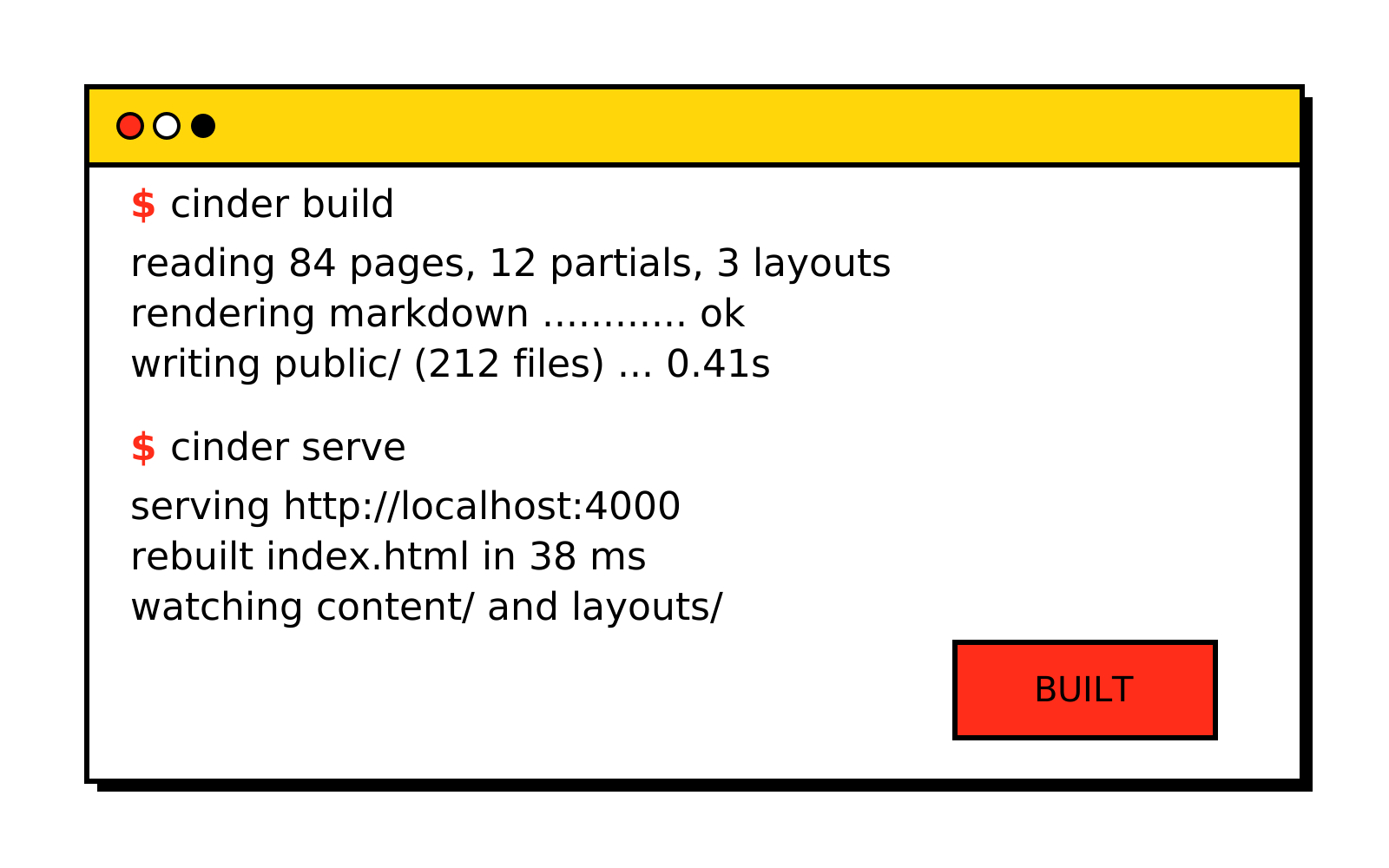
Flat SVG shapes only: hard-edged black offset shadows, primary red and yellow fills, white paper. The terminal illustration is a light window with a monospace transcript. Avatars are simple geometric figures.
To sketch similar art: "Draw a flat neo-brutalist SVG composition of overlapping squares and circles in hot red, yellow and black on white, with hard offset black shadows and 6px black outlines."
Files
With the Page Lemon connector you don't need to fetch these: deploy with template: "cinder" copies them all (step 2). Otherwise fetch each file from https://pagelemon.com/templates/cinder/ and save it with the same relative path (including art/). Fetch nothing else: templates have no external images or scripts.
- https://pagelemon.com/templates/cinder/index.html
- https://pagelemon.com/templates/cinder/install.html
- https://pagelemon.com/templates/cinder/docs.html
- https://pagelemon.com/templates/cinder/roadmap.html
- https://pagelemon.com/templates/cinder/sponsors.html
- https://pagelemon.com/templates/cinder/contributors.html
- https://pagelemon.com/templates/cinder/privacy.html
- https://pagelemon.com/templates/cinder/404.html
- https://pagelemon.com/templates/cinder/styles.css
- https://pagelemon.com/templates/cinder/script.js
- https://pagelemon.com/templates/cinder/favicon.svg
- https://pagelemon.com/templates/cinder/og.png
- https://pagelemon.com/templates/cinder/apple-touch-icon.png
- https://pagelemon.com/templates/cinder/art/hero.svg
- https://pagelemon.com/templates/cinder/art/terminal.svg
- https://pagelemon.com/templates/cinder/art/avatar-1.svg
- https://pagelemon.com/templates/cinder/art/avatar-2.svg
- https://pagelemon.com/templates/cinder/art/avatar-3.svg






Notes for Cinder (its customise rules)
- Replace the install command in index.html and install.html, and the copy-button data-copy attributes, so they match exactly.
- Replace every data-pl-fill fact: name, email, stars, version, sponsor names, maintainers, contributor handles and issue numbers.
- Replace the example.com source, releases and issue links with the real project URLs.
- Rewrite the docs index sections and the CLI reference table to match your tool.
- Colours: Edit the commented :root tokens at the start of styles.css. Keep hard black borders and check that text on red and yellow stays at 4.5:1.
- Fonts: Archivo Black (regular) and Azeret Mono (400 and 700): two families, three files. Edit the Google Fonts link in every HTML head and the two font tokens in styles.css.
- Sections: All pages share the header, footer and skip link. Stickers and the ticker are decorative and can be removed. Keep the install CTA in the hero, the final band and the footer. The sponsor form stays inert until a real form plugin is connected.
- Images: Replace hero.svg with a square 800×800 illustration, terminal.svg with a real 1600×1000 terminal screenshot, and avatar-1..3.svg with square 400×400 portraits. Preserve dimensions and data-pl-photo. WebP under 300 KB each. The pipeline generates og.png and apple-touch-icon.png.
Build the site, step by step
-
Interview first. Ask the user these questions, a few at a time, in plain words, and collect every fact the site needs (name, email, install command, version number, star count, sponsor tiers and prices, sponsor names and logos, maintainer names and roles, contributor handles, roadmap items and issue numbers, source, releases and CONTRIBUTING links, review quotes). If they can't answer one, remove that element rather than inventing it.
- What is the project called, and what does it do in one sentence?
- What is the install command for your main platform?
- Which licence does it use?
- Who maintains it, and what is each person's role?
- What are your sponsor tiers and their monthly prices?
- What are the three or four items on the roadmap right now?
-
Get the files. If you have the Page Lemon tool (the MCP connector with a
deploytool; https://pagelemon.com/docs/connect sets it up), calldeploywithtemplate: "cinder"(no files): Page Lemon copies every file above on its side and returnssite,revisionand, without an account,site_token. Read each page you will change withget_siteandpath, make the changes below, then publish only the changed files withdeploy,site,base_revision(that revision) andpatch: true; show the link only after that. Without the tool, fetch the files listed above. If you cannot fetch files either, ask the user for what you need and rebuild the pages from the live demo as closely as you can. -
Make it the user's site. Follow
customiseintemplate.json:-
Replace every element marked
data-pl-fill(names, phone, email, address, hours, prices, people, dates, links, stats) on every page, then remove the attributes. Never ship adata-pl-filldefault. The sample town, street and people's names also appear in ordinary sentences,aria-labels and imagealttext: replace them there too. Name, address and phone must match exactly in the footer, the visit or contact page and the JSON-LD. -
Sample reviews (
data-pl-fill="review") are fictional: delete them unless the user gives you real ones. Delete each whole review, with its name or caption, and the section and its nav link when none is left. Never invent reviews, numbers or awards. -
Update each page's
<title>, meta description, canonical,og:urlandog:imageto the user's real address, and the JSON-LD block on the home page (type, name, address,geocoordinates (delete them unless you have the real ones), hours, phone,url). -
Photos: each
<img data-pl-photo="...">says what photo belongs there and its shape. Swap in the user's photos (compressed, WebP or JPEG under about 300 KB, same aspect ratio, realalt), or keep the illustration. Ask for photos; never hot-link. -
Make a new
og.png(1200×630) of the new home page if you can, with itsog:imagetags; otherwise delete the sample one and itsog:imagetags (a template deploy has already left both out). Change colours only through the:roottokens instyles.css, fonts through the font tokens and the<link>that loads them. Google Fonts is fine, but it sends each visitor's IP address to Google, so the privacy-friendly choice is to self-host the font files (woff2) in the site folder with@font-face, or use system fonts. - Delete pages or sections the user doesn't need (and their nav links) rather than leaving them generic. Keep the layout, type scale and signature interaction: they are what makes it look designed.
-
Remove the
<!-- Page Lemon template ... -->comment.
-
Replace every element marked
-
Forms and bookings. Templates have no fake forms. Each
data-pl-slotshows a fallback that works today (call, email, or the Site Owner's own booking or payment link: ask for it). The designed form sits next to it in an inert<template data-pl-slot-form="<id>">;template.json.slotssays which page has which. When the user wants the real thing (Forms and Booking: any paid plan; staff and rooms only on some, and each plan has a limit of online bookings a day), set the form up as a list (save_list) or the service (save_service), put the matching markup in the slot (reuse the template's form classes so it matches), delete the fallback and the<template>, and copy the paragraph from<template data-pl-privacy="forms">intoprivacy.html. -
Check before publishing:
-
Search every file for
data-pl-fill, the template's fictional business name and its sample phone, email and street, in links too (tel:andmailto:hrefs, and map links, where the street is written like18+Linden+Walk): none left. - All links between pages work; nav and footer are the same on every page.
- Body text contrast at least 4.5:1, large text and buttons 3:1, after any colour change.
- No horizontal scroll at 320 px; headlines still fit on a phone after copy changes.
-
One
h1per page, a unique<title>and meta description per page, alt text on meaningful images. - Copy sounds like the user, not like an AI (see https://pagelemon.com/guides/website-copy-that-doesnt-sound-like-ai).
-
Search every file for
- Publish with Page Lemon (below; with the tool, the patch deploy from step 2 is the publish), then tell the user which template you used and that they can keep changing the site, or add bookings and forms, by asking.
Publish with Page Lemon
Pick the first route you can use:
-
You can run shell commands: build if needed, then upload only the folder with
index.html(dist/,build/,out/…). Never upload source code,.envfiles or keys: everything you upload becomes public. (at most 100 files and 1 MB in all,index.htmlat the root):
If the user gave you an API key (node -e 'const fs=require("fs"),p=require("path"),d=process.argv[1],files=[];(function w(x){for(const e of fs.readdirSync(x,{withFileTypes:true})){const f=p.join(x,e.name);e.isDirectory()?w(f):files.push({path:p.relative(d,f).split(p.sep).join("/"),content_base64:fs.readFileSync(f).toString("base64")})}})(d);console.log(JSON.stringify({files}))' <dir> \ | curl -sS --fail-with-body -H "Content-Type: application/json" --data-binary @- https://api.pagelemon.com/v2/anonymous-sitesplak_…) or~/.config/pagelemon/credentialsexists, publish into their account instead (see "Updating a site" in https://pagelemon.com/agents). If.pagelemon.jsonexists, the site is already published: see "Updating a site" in https://pagelemon.com/agents. -
You have the Page Lemon MCP connector (
https://mcp.pagelemon.com/mcp): call itspublish_sitetool with every file. See "No shell: the MCP connector" in https://pagelemon.com/agents. -
Neither (a chat app without the Page Lemon connector): say once that they can connect Page Lemon to this AI app (steps at https://pagelemon.com/docs/connect) so you can publish and change the site for them. In the Gemini app or Grok (free plan included) it takes about a minute: Gemini at gemini.google.com/customize/connectors (Custom), Grok at grok.com/connectors (New Connector, Custom), with the link
https://mcp.pagelemon.com/mcp; then they sign in and click Allow. Give those steps in plain words. If they can't or would rather not (for example ChatGPT's free plan), don't ask them to save or upload files. Put the whole site in ONE complete page: CSS and JavaScript inline, images as https links or small data URIs, from<!DOCTYPE html>to</html>. Show it as one code block, then tell them: "Tap Copy on the code, open pagelemon.com/publish, tap Paste and publish." Only if you can really give them a downloadable .zip (a file they tap to download, not code to save): "Download this zip, open pagelemon.com/publish, tap Drop or choose a file." They get a live link with no account, online for 72 hours unless they tap Keep it free. Don't say you can't help.
Then:
-
Pass on
agent_messagefrom the response in full, success or failure, in the user's language and your own words. It has the link, the expiry time, the private keep link and the terms line: copy every link, code, number, date and domain exactly, and never drop a link, deadline or the terms line (keep both its links). If it asks a question, ask it and wait. Times in it are UTC;*_atfields have them in ISO, so you can give the user's local time. -
On success, save
.pagelemon.jsonin the project folder and add it to.gitignore(see https://pagelemon.com/agents). - Offer to help keep the site (see "Keeping the site" in https://pagelemon.com/agents). Sites published without an account go offline after 72 hours unless the user keeps them with a free account.
By publishing, the user agrees to the Terms (https://pagelemon.com/terms) and Privacy Policy (https://pagelemon.com/privacy). The agent_message includes this line; keep it.
More: https://pagelemon.com/agents (full guide: updating a site, keeping it, custom domains, plugins). All templates: https://pagelemon.com/templates/index.json.