
Let customers book a time on your own site
Visitors pick a free time and book. Page Lemon stops double bookings and emails you and your customer. Set it up by asking your AI, then manage bookings in our dashboard or keep asking.
Say to your AI
“Add bookings: haircut 30 minutes, cut and colour 90 minutes, with Anna and Leo. Tuesday to Saturday, 9 to 6.”
Who uses it
Salons and barbers
Each service with its own length and price, each stylist with their own hours. Customers pick a stylist or “any available”.
Tutors and teachers
One-off lessons booked online, and weekly regulars added in one sentence: “Book Tom every Tuesday at 5 for 10 weeks.”
Studios and classes
Several people book the same time, up to the number of places you set. When it’s full, that time disappears.
Consultants
Approve each request before it’s confirmed, ask a few questions when people book, and set how much notice you need.
Rooms and desks
Each room or desk is booked on its own, with its own hours, one booking at a time.
Restaurants
Guests book for their party size; you set your tables. Large groups become requests for you to approve.
How it works
Tell your AI what you offer
Your services, who does them, and your hours. Your AI asks only what it can’t sensibly assume.
Check the plan
It shows you the setup with the defaults it chose, and asks about closed days and whether to approve bookings first.
It goes on your site
Your AI puts the booking page into your site, in your colours, and makes a test booking before telling you it’s live.
Bookings come in
You and your customer get emails. Manage them in the dashboard, or ask your AI.
Manage bookings in the dashboard, or just ask
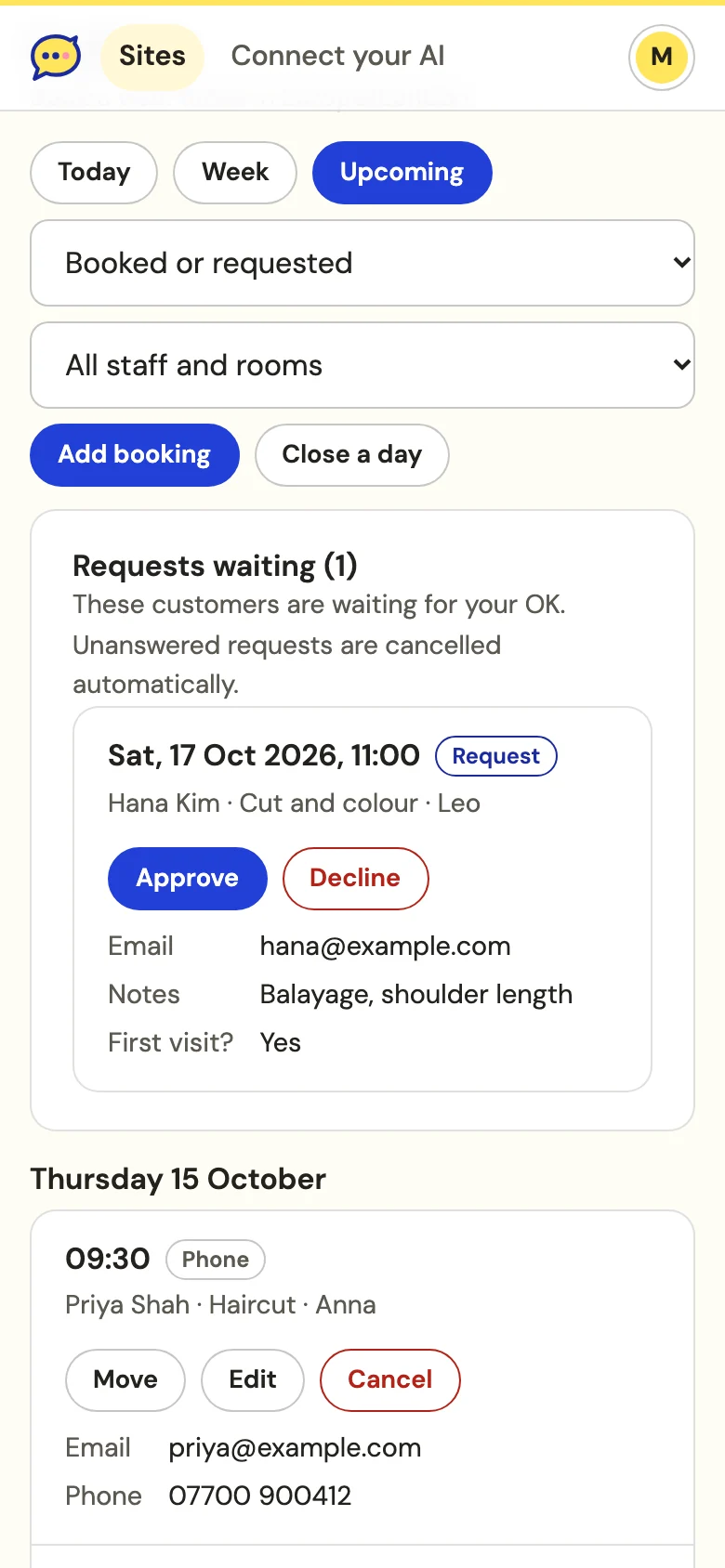
Owners who like to see everything at a glance can use the bookings view in the Page Lemon dashboard. Everything there can also be done by asking your AI.
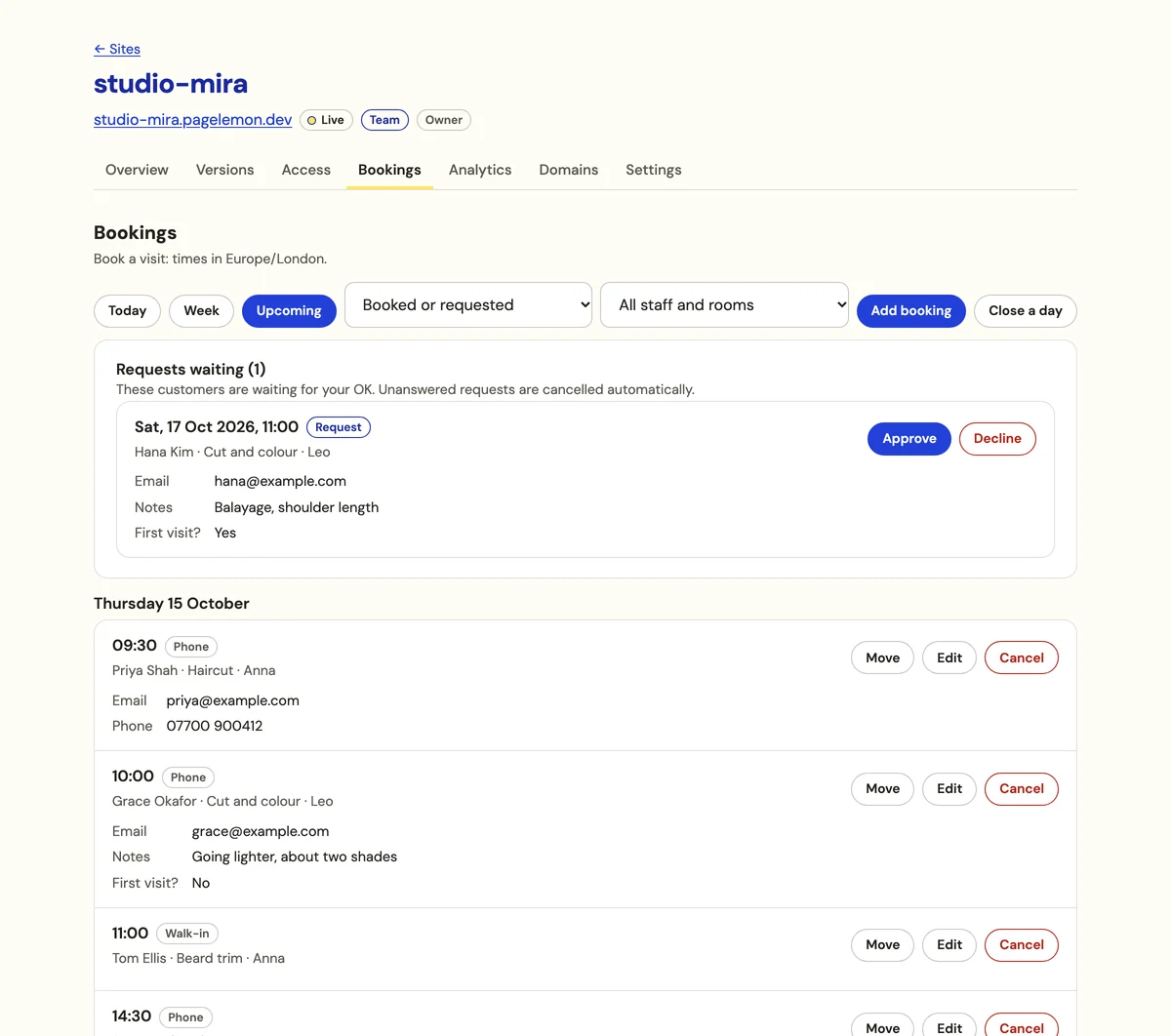
- Approve or declineRequests wait for your OK. Unanswered requests are cancelled after the time you set (24 hours unless you change it).
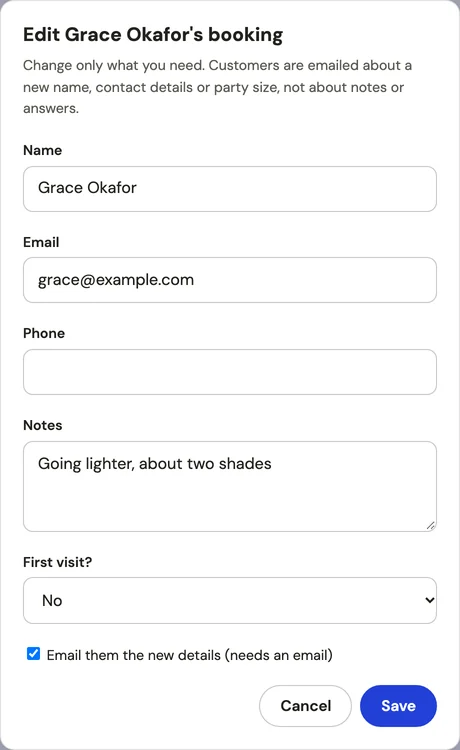
- Move, edit or cancelMove picks from the free times. Cancelling asks you to confirm, and the customer is emailed.
- Add a phone or walk-in bookingBook someone in yourself, with a free time or any time you choose.
- Close a dayMark a day closed and it disappears from the booking page.
- Done and no-showMark past bookings as done or no-show.
- DownloadExport your bookings as a spreadsheet.
Or ask your AI
“Who’s booked tomorrow?”
“Any booking requests waiting?”
“Add a phone booking for Priya, Thursday 9:30, haircut with Anna.”
“We’re closed 24 to 26 December.”
“Move Grace’s booking to Friday afternoon.”
“When is Leo free on Saturday?”
Anything that emails a customer, like cancelling or moving a booking, is checked with you before it happens.
Set your own limits
Tell your AI how you work. These are the settings it can use:
- Opening hoursDifferent hours for each day, several opening periods a day, even past midnight.
- Closures and special daysSingle days, date ranges, or the same date every year, closed or with special hours.
- ServicesUp to 20, each with its own length, a price shown on the page, and a break before or after.
- Staff and roomsUp to 20, each with their own hours and days off, and which services they do.
- Places per timeFor classes and tables: how many people can book the same time, and the largest group online.
- Time between slotsStart times every 15, 30 or 60 minutes, or what suits you.
- Notice and how far aheadThe least notice you need (an hour unless you change it) and how far ahead people can book (60 days, up to a year).
- ApprovalConfirm instantly, approve every booking, approve one service, or approve groups over a size.
- Cancelling and movingHow late customers can cancel or move their own booking (24 hours before unless you change it).
- QuestionsUp to 10 extra questions, such as “First visit?” or allergies. Answers go to you only.
Emails and calendars
- Confirmation for your customerWith a calendar invite attached and a link to move or cancel their booking.
- RemindersUp to two per booking; one the day before unless you choose otherwise.
- An email to youFor each new booking, request, cancellation or move. Replies from customers come to your address.
- Your calendar appA private calendar feed puts your bookings in Google Calendar, Apple Calendar or Outlook.
- Busy times blockedGive your AI your calendar’s private link and times you’re busy there can’t be booked.
- Email onlyConfirmations and reminders go by email. There are no text messages.
By plan
Bookings are part of the Business plans.
| Plan | Free | Prompter | Builder | Team | Company | Enterprise |
|---|---|---|---|---|---|---|
| Bookings a month | 2,000 | 5,000 | Set per contract | |||
| Customer emails a day | 400 | 1,000 | Follows bookings | |||
| Reminders per booking | 2 | 2 | 2 |
Each date in a repeating series counts as one booking. Test bookings don’t count. Compare plans
Questions
Can two people book the same slot?
No. Page Lemon checks the moment someone books, so only one person gets a slot. For classes, the slot stays open until its places are taken.
Can customers pay when they book?
Not yet. Prices show on the booking page as text, and payment is arranged as you do today.
Is it on Prompter or Builder?
No. Bookings are on Team, Company and Enterprise. Booking pages made on Prompter or Builder before 12 October 2026 keep working.
What if my own calendar can’t be read?
If the private calendar link stops working for more than a day, booking pauses so nobody books a time you might be busy, and you’re emailed once a day until it’s fixed.